
You can set up global links to the social networks in the site settings. This way, when you add social icons to the blocks, the links are applied automatically. Besides, you can add custom links for the particular block on your site.
Follow the instructions below to add global social links and customize the style of social icons.
Adding global social links
1. Open the Settings of your site and navigate to the Social links tab:
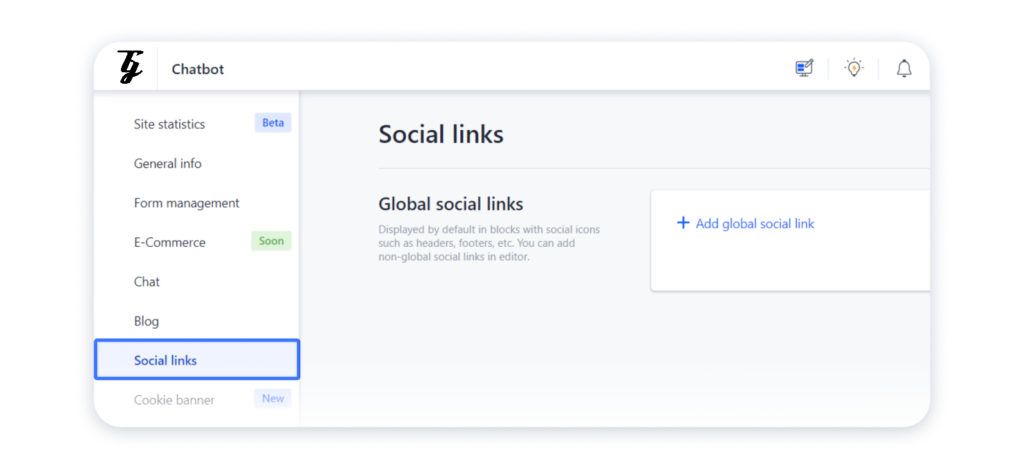
2. Click on Add global social link:

3. Choose the required social network in the pop-up menu:
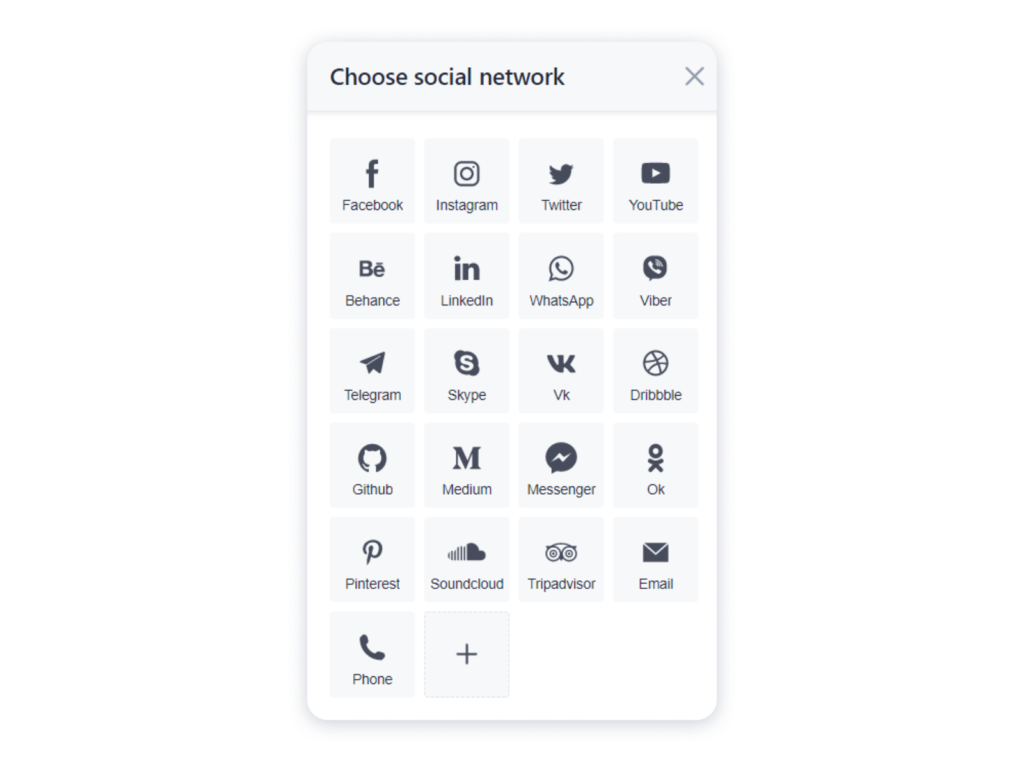
Note: You can also add a custom icon for the social network. For that, click on the “plus” sign and upload the icon in the new window:

4. Go back to the Social links tab and add the relevant links to your profiles:

5. Open the site’s editor and add a block with the social icons in it:

Changing the style of social icons
1. Click on the social icons in the block to access their settings:

2. Navigate to the Style tab and choose the needed shape, size and colors for the icons:
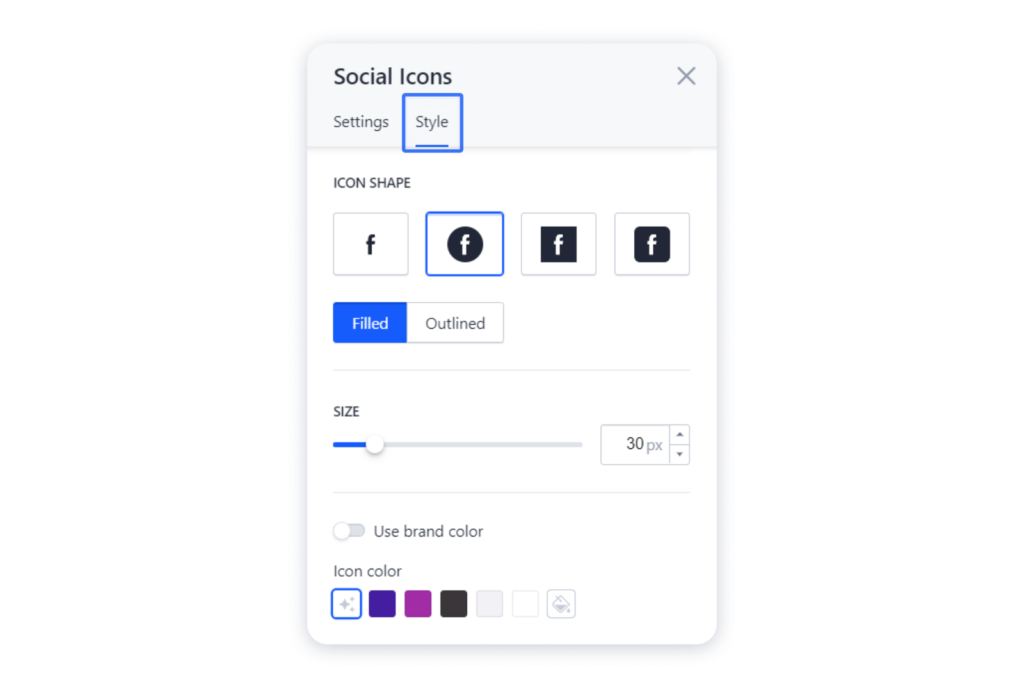
Note: There is no way to edit each icon separately.
3. You can also use brand color for the icons:

4. Publish the site for the changes to appear live.