
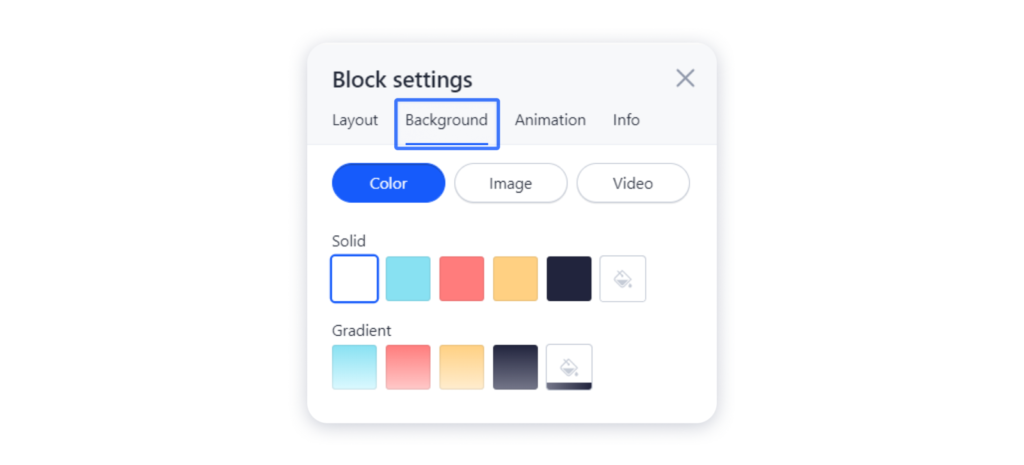
1. For that, navigate to the Background tab in the Settings of your block to add color, image or video as a background to your block:
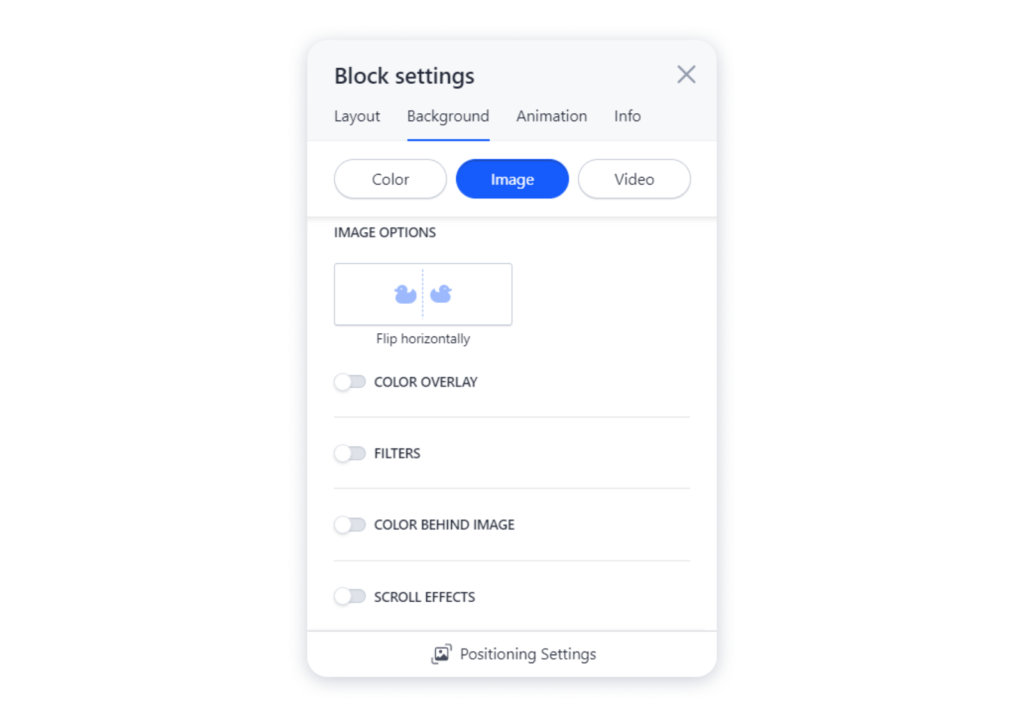
2. When you set a photo as a background, you will see more customization options — e.g., applying filter or color correction:
3. If you want to set a video as a background to your block, the supported links are those from YouTube and Vimeo. You can also go ahead and adjust the color overlay to match your video to the site colors:

Tip: The background video will remain static in the editor to increase the loading speed. The video will be shown as usual on published site.
4. Your block can contain the columns with their specific settings. Thus, you can also change the background for that specific column. For that, access the column settings, navigate to the Background tab and choose the color or the image:
