
If you are looking for a way to fit in a product to an existing block organically, try adding a product card as a separate element. It’s possible to do so in almost all the blocks in the editor, plus it allows certain flexibility in terms of the layout you get.
Adding a product card element to an existing block
1. Hover over a place in the block where you’d like to add a product card element and click on the “plus”:

2. Then, choose the Product element in the list:
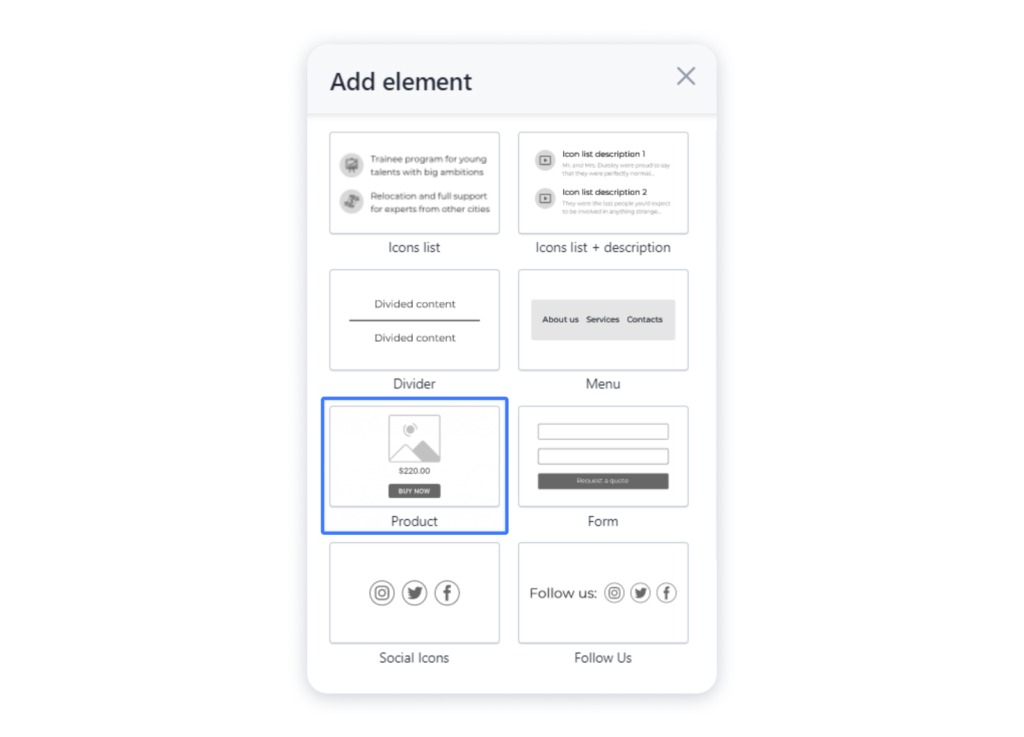
3. Hover over the Product element and click on the “gear” at the top left corner:
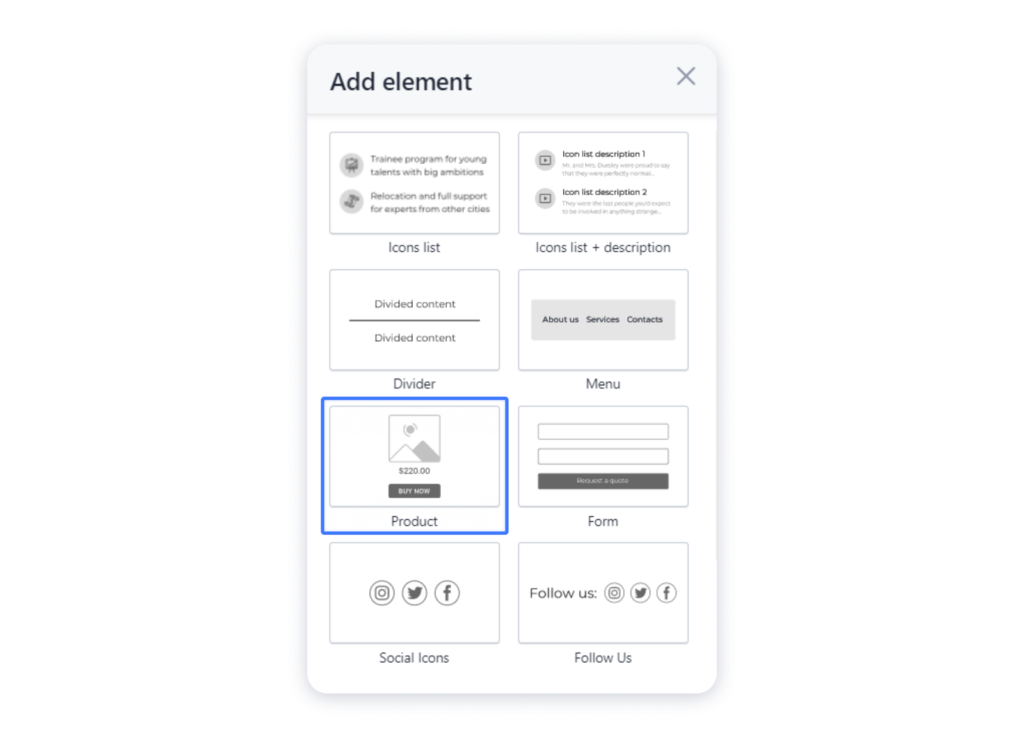
4. In the Product layout choose the product you want to display:

5. Once you are done adding products in the editor, make sure to publish the site for the changes to take effect.